
FIRST NAME *
SURNAME *
EMAIL *
PHONE
MESSAGE *
teamo
This site is protected by reCAPTCHA and the Google Privacy Policy and Terms of Service apply.
Thanks for your message!
We will do our best to get back to you as soon as possible.

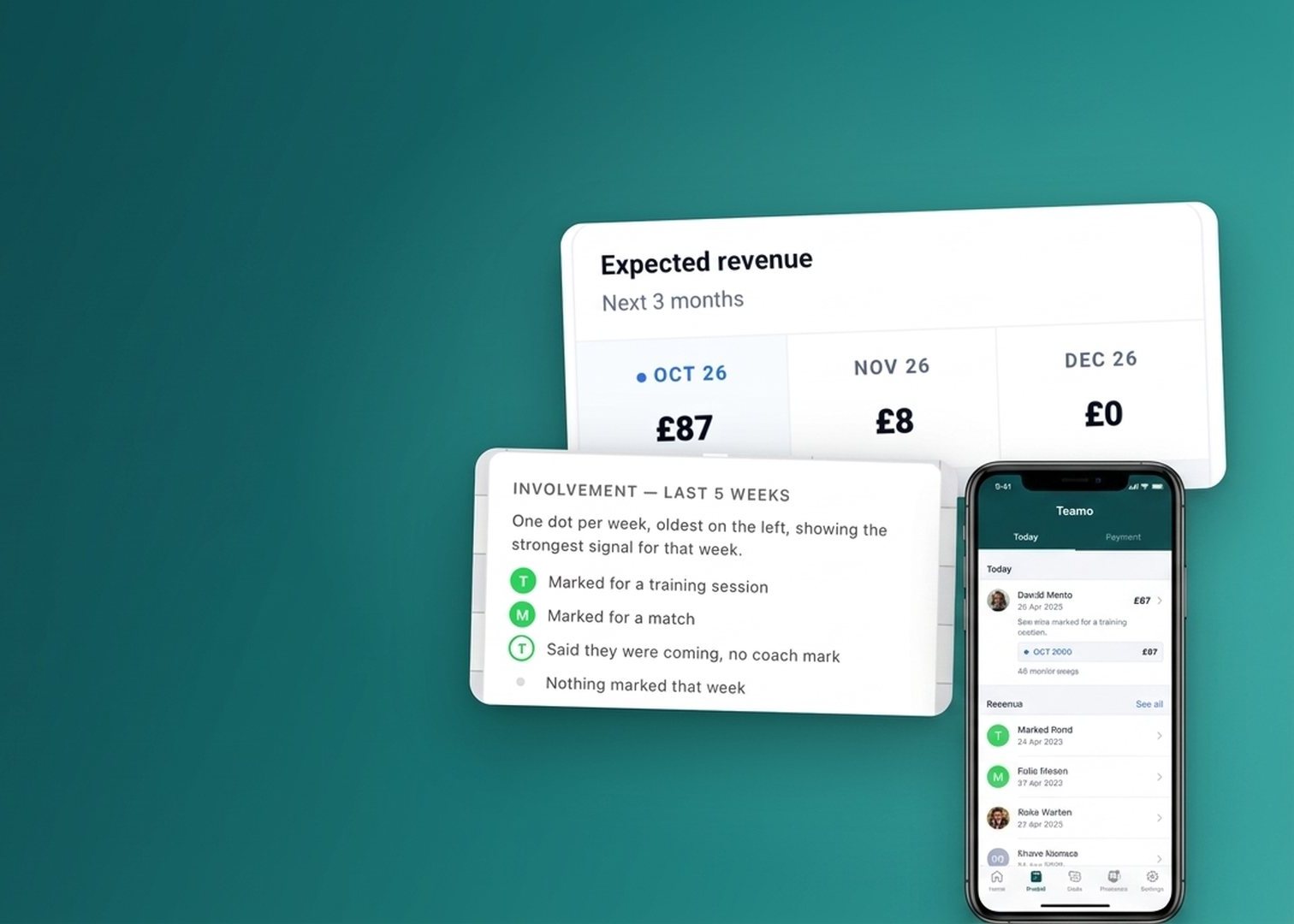
The Payment Centre now shows the money coming in over the next few months, and each member’s recent training and matches.
Over August and September we reworked the Payment Centre for treasurers. The right-hand rail now forecasts what’s coming in, you can narrow memberships down to a single group, and a new column puts each member’s recent training and matches next to their payments.
The Payment Centre is where you look after your club’s memberships and payments. It now answers two big questions for a treasurer: what’s coming in, and who’s been taking part.
Treasurers, and anyone else in the club who looks after memberships and payments in the Payment Centre.
Go to Manage Club, press the Payments Center button and choose the Memberships tab.
The right-hand rail has been restructured. It now shows the money expected over the coming months: money already paid is placed by the date it was paid, and Direct Debits by the date they are due.

The Expected revenue card shows the next three months, month by month, with a three-month total.
Warnings are gathered into one card, with the most serious first. The first-time instructions step aside once you no longer need them.
Press Filter, choose Filter by group and tick a group. The totals follow the group you chose. You can keep using the search box while the side rail is open.

Filter by group lists your club’s groups. Tick one to narrow the view.
If you don’t see the new Involvement column, press Configure at the bottom left of the table and tick Involvement — last 5 weeks.

Configure lets you choose the columns you see, including Involvement.
The column shows one mark per week for each member’s last five weeks, oldest on the left: marked for a training session, marked for a match, or said they were coming where no coach mark was made. Weeks when a member had no session are left blank, and a key explains each mark.

The key beside the column heading explains each mark.
It shows who a manager marked, not who walked through the door, so an empty week isn’t proof someone missed it. Even so, with training next to payments you can see who’s taking part but not paying, and who’s paying but hasn’t been marked at a session lately.
Every column in the payments table now sorts, and a guardian listed against a charge says why they’re there. When someone needs to get set up, chase them for a payment method rather than a payment. Each member gets a chase link of their own, and it works in a broadcast. Memberships show an AutoPay coverage banner, and there’s an opt-in route that takes a member straight to Direct Debit setup.
For assigning memberships in the Payment Centre, see Collect Membership Payments in the Help Centre. For chase links, AutoPay coverage and Direct Debit, read Feature Focus: AutoPay and Direct Debit.
Questions about the Payment Centre? Just reach out to the team in-app.
Our Partners


We will do our best to get back to you as soon as possible.