
FIRST NAME *
SURNAME *
EMAIL *
PHONE
MESSAGE *
teamo
This site is protected by reCAPTCHA and the Google Privacy Policy and Terms of Service apply.
Thanks for your message!
We will do our best to get back to you as soon as possible.

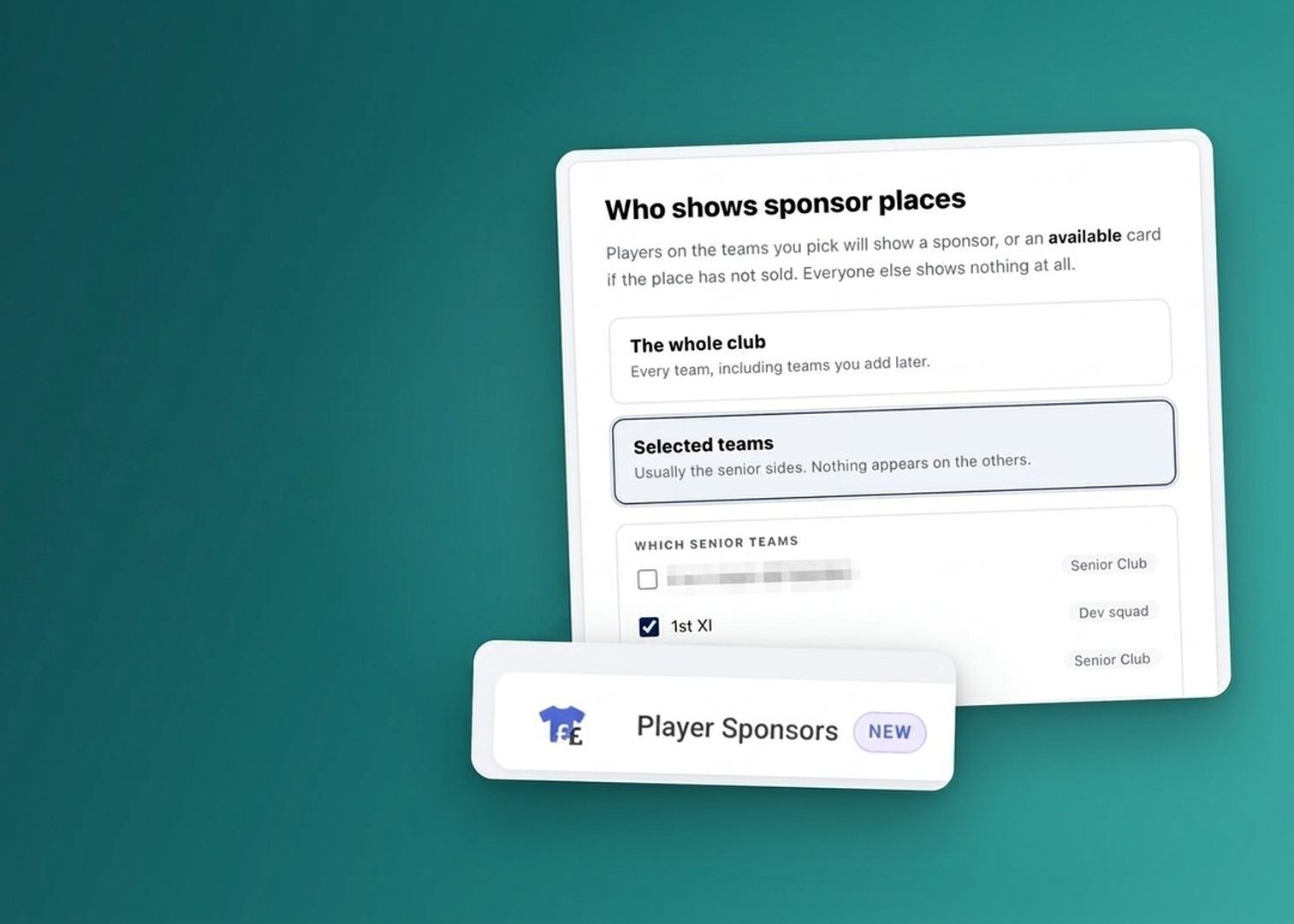
A local business can now sponsor one of your players, and its logo appears beside that player on your club website and in the app.
Player sponsorships give a sponsor a place right next to the player they’re backing. You switch them on for a team, run them from one place in Manage Club, and can show sponsored players in a contacts block on a website page. We’ve also given you more control over how sponsors look in your GetSocial graphics.
A player sponsorship links a local business to one named player. Once it’s set up:

In the app: the sponsor’s logo beside the player, or its name and strapline when there’s no artwork yet.
Nothing appears on your website or in the app until you do, so you can start with the teams you want and leave the rest off.

In Player Sponsors, choose the teams that show sponsor places. Nothing appears on the others.
Go to Manage Club and open Player Sponsors.

Player Sponsors sits under Club Admin in Manage Club.
Add each business against the player it sponsors, with its logo, name and strapline. If the artwork hasn’t arrived yet, the name and strapline show in its place. For every screen, step by step, see the Player Sponsors guide in the Help Centre.

Each sponsorship has a heading, strapline and logo, with a live preview of how it will look.
When you add a contacts block to a website page, you can now choose its layout (Grid, List or Cards) and turn on “Show sponsored players” straight away.
In GetSocial’s sponsors section, two layouts have a new setting:
New to GetSocial? See Boost your club’s social media with #GetSocial.
More on the website editor: Feature Focus: make your club website yours.
Is there a local business that would like to back one of your players? Now’s a good time to ask. Questions? Just reach out to the team in-app.
Our Partners


We will do our best to get back to you as soon as possible.